SETUP INSTRUCTIONS
If you've just received one of our products as a gift, or you've bought a blank one for yourself, you'll first have to setup the WiFi details on it before it can be used, but don't worry - it's very easy.
We use the NFC Tools app to do this, other apps are available but none have been tested by us. In the future we will be bringing out our own app to simplify things.
1 - INSTALL NFC TOOLS
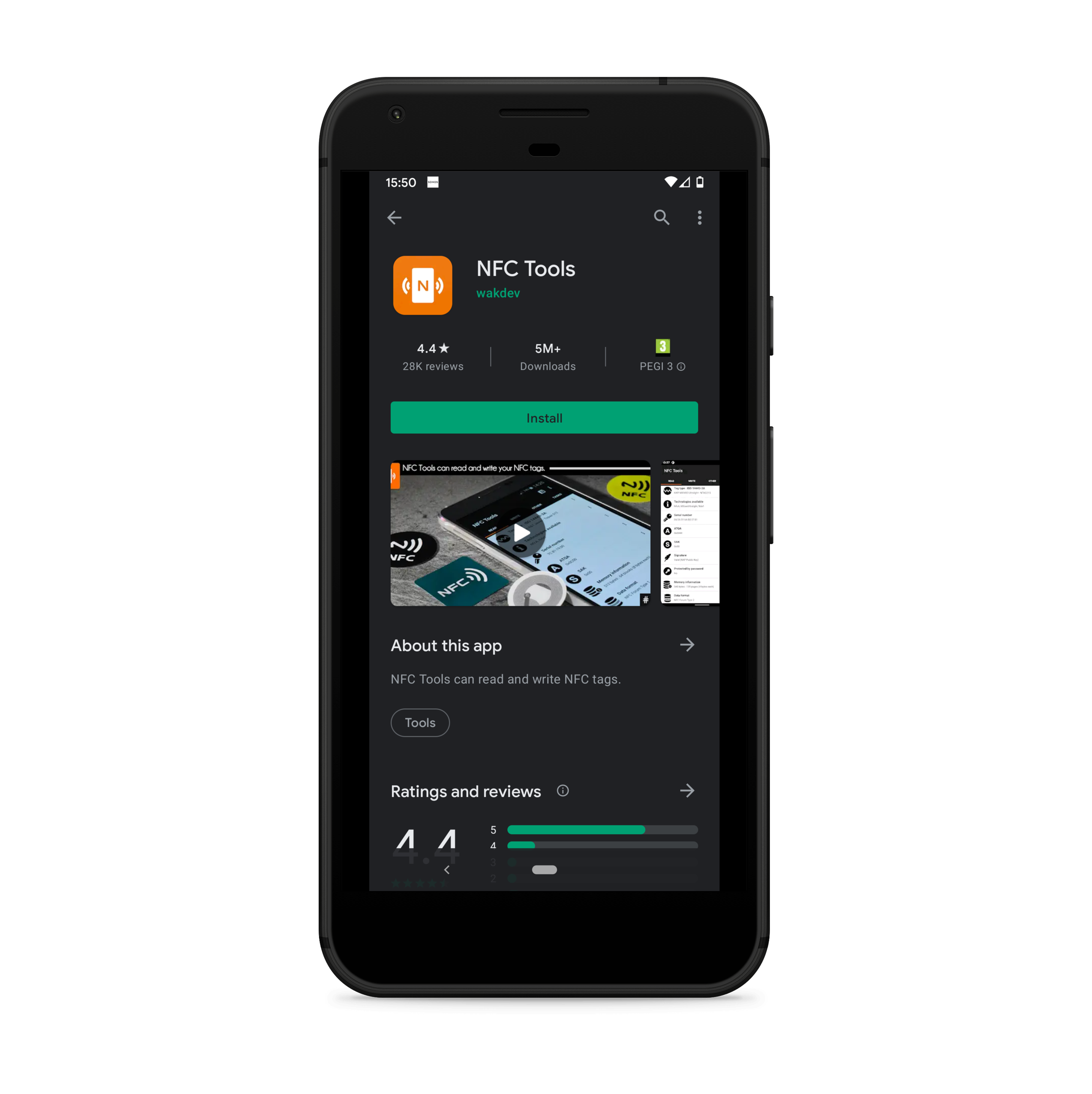
Download NFC Tools from your preferred app store and install it on your NFC enabled device.
2 - OPEN WRITE MENU
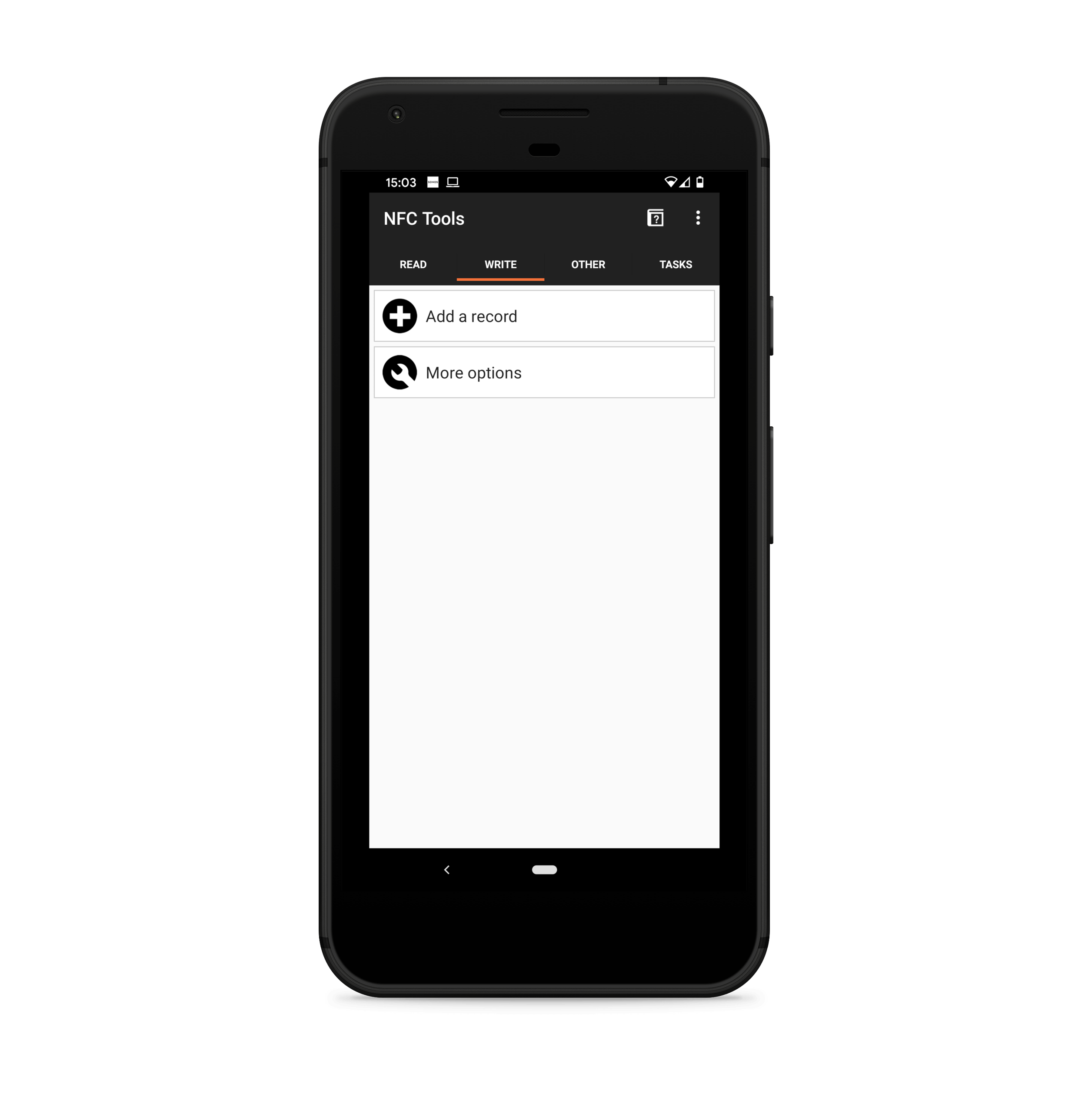
Once installed and opened just tap on Write along the top.
3 - ADD WIFI RECORD
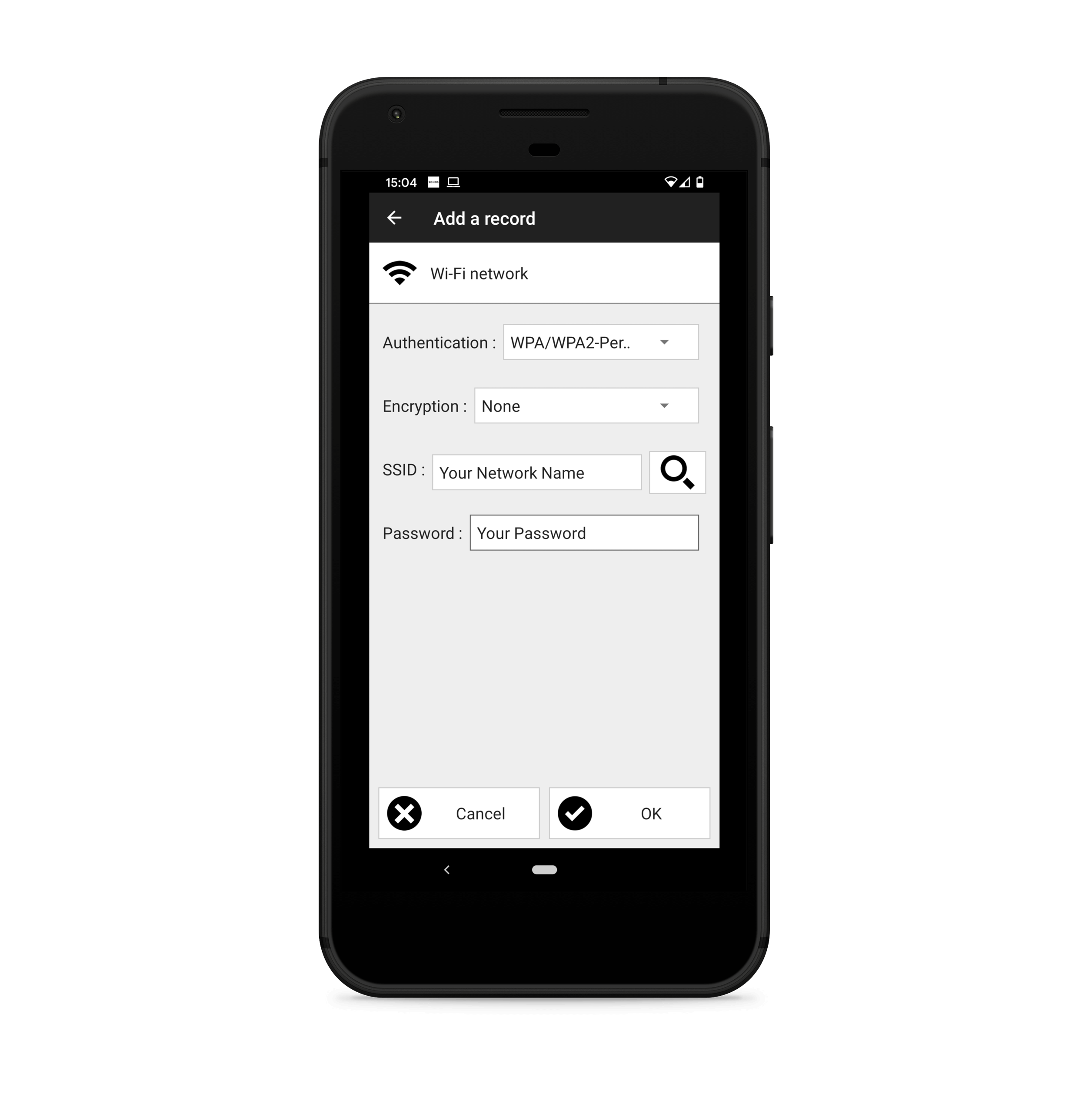
Tap "Add a record" and scroll to the bottom of the list, then select "Wi-Fi Network". You'll then need to add the name of your WiFi and the authentication you use, most of the time this will be WPA/WPA2 Personal, the encrytion type, and your password.
4 - ADD LINK RECORD
The WiFi record will work on most modern android devices however Apple does not support it on iOS ( yet ) so for the time being our products use Mobile Configuration files.
To set this up simply go to our registration page, enter the details you entered above and hit Register. This will then give you a long URL to be added as a Link Record to your product.
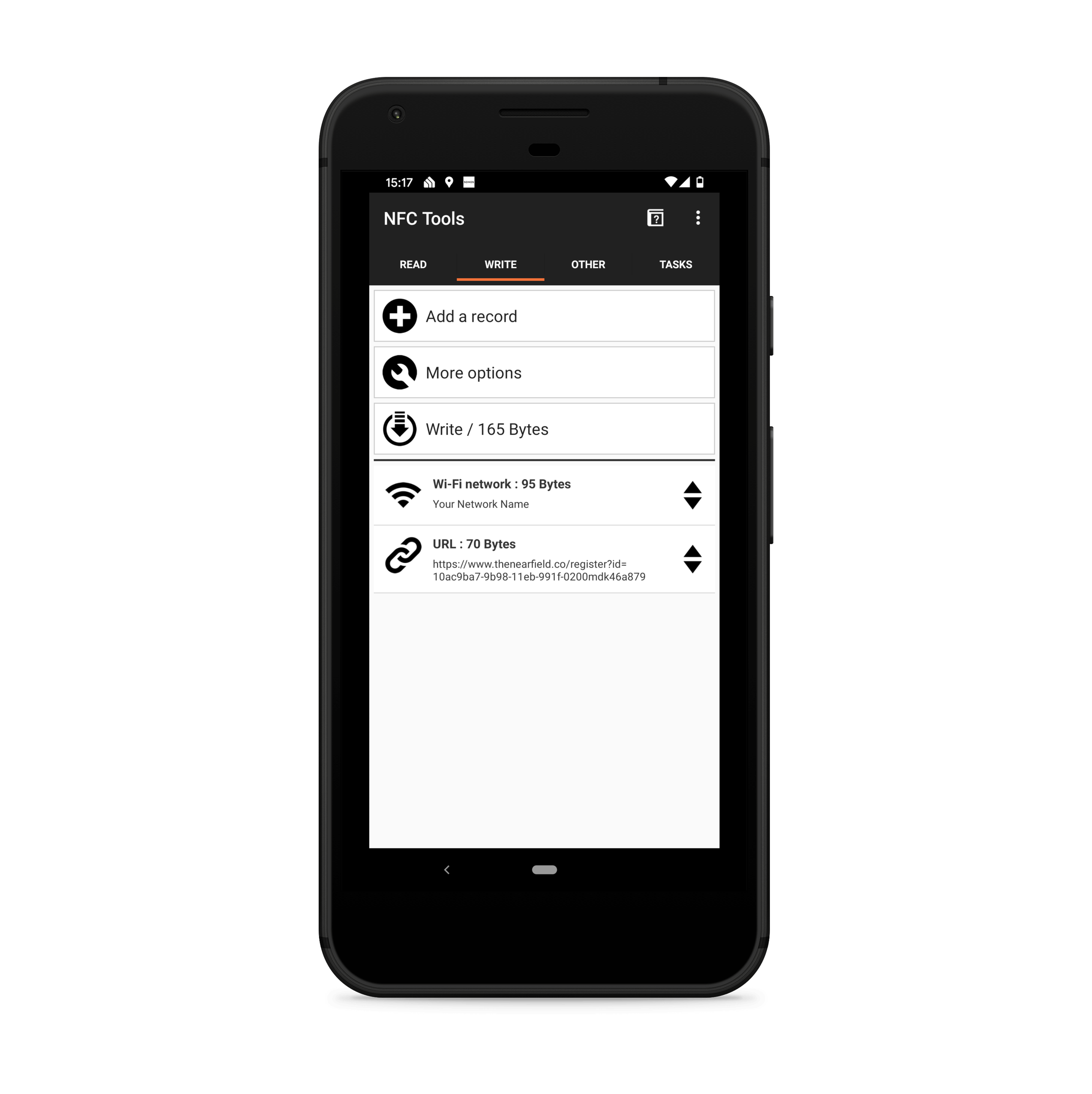
Link records are added in a similar fashion, just head to the Write menu, add a new record, and tap "Custom URL / URI" and enter the link provided after registration.
5 - WRITE TO TAG
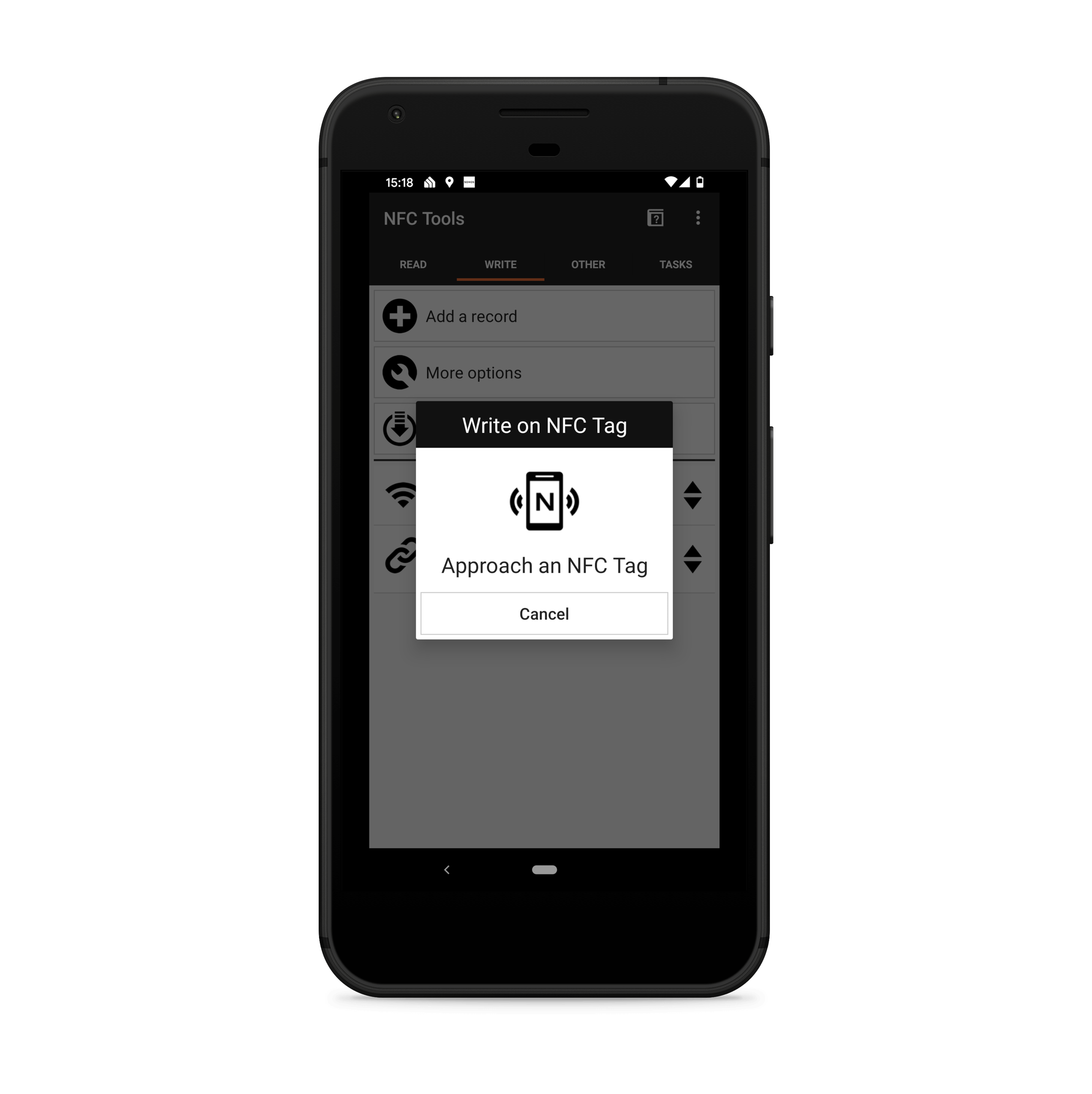
With both records added, ensuring the WiFi record is the first one, simply hit "Write" and then move your phone near the centre of the coaster until it successfully writes. You may need to move your phone around until the sensor in your phone is in the right place.
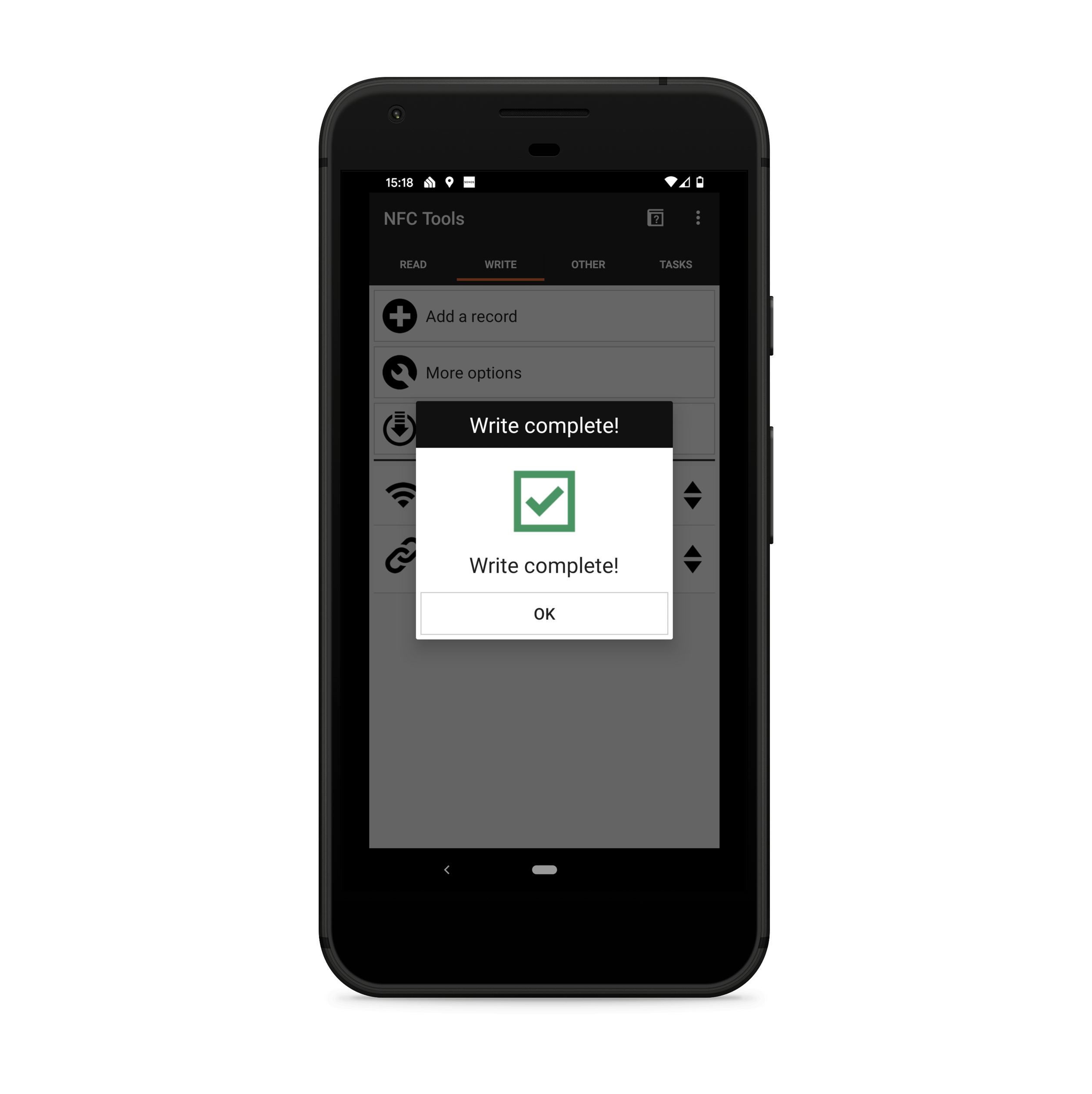
That's it, you're all done! Now with the NFC app closed simply move your phone near the item for it to work. If you have any issues just get in touch.
NOTE:You will now be able to tap your device on the coaster to read the NFC data however for iOS please make sure the NFC Tools app is fully closed before doing so.